
App using jsonrpc to quickly call scenes
WARNING
The app is currently in development and testing. It can be used for experience purposes, but is not yet suitable for production environments.
Product Overview
Lebai's cross-platform mobile application, currently supports Android devices (including phones and tablets), with iOS version under planning. Users only need to install the application package (APK/iOS) for their platform to quickly achieve interactive control with the robot, featuring plug-and-play convenience.
Product Value
Traditional robot control requires accessing the LMaster system through a webpage, searching for specific functions among numerous scenarios, resulting in a lengthy operation path. This App provides a more intuitive and efficient human-machine interaction method, mainly applicable in the following scenarios:
Demonstration: Presenters can pre-configure common scenarios to achieve seamless coordination between presentations and robot demonstrations, enhancing the exhibition effect.
Exhibition: Providing tablet terminals for visitors, enabling "menu-style" robot control through a simple and clear interface, lowering the experience threshold.
Development Integration: Providing JSON-RPC interface references for technical teams, supporting secondary development and integration into various intelligent device systems.
Multi-machine Management: Simplifying the management process of multiple robot devices, enabling quick switching between different device controls.
App Download
Download Android app installation file
Click the download link above to download the apk file. After downloading, transfer the apk installation file to your phone or pad (transfer can be done via WeChat/QQ/USB Type-C cable). After transferring to the device, click the installation file and select install.
Usage Flow
- After downloading the installation file, you can directly install it on your phone. For exhibition events, administrators can pre-install it on pads for customers to use directly.
- Before opening the app, the phone or pad must be on the same network as the robot (the device can directly connect to the robot's wireless network, or connect to a router with both device and robot connected to the router's network). This step is very important and mandatory.
- After entering the app, it will remind customers to configure in advance. First-time entry will guide to the configuration page (with a button).
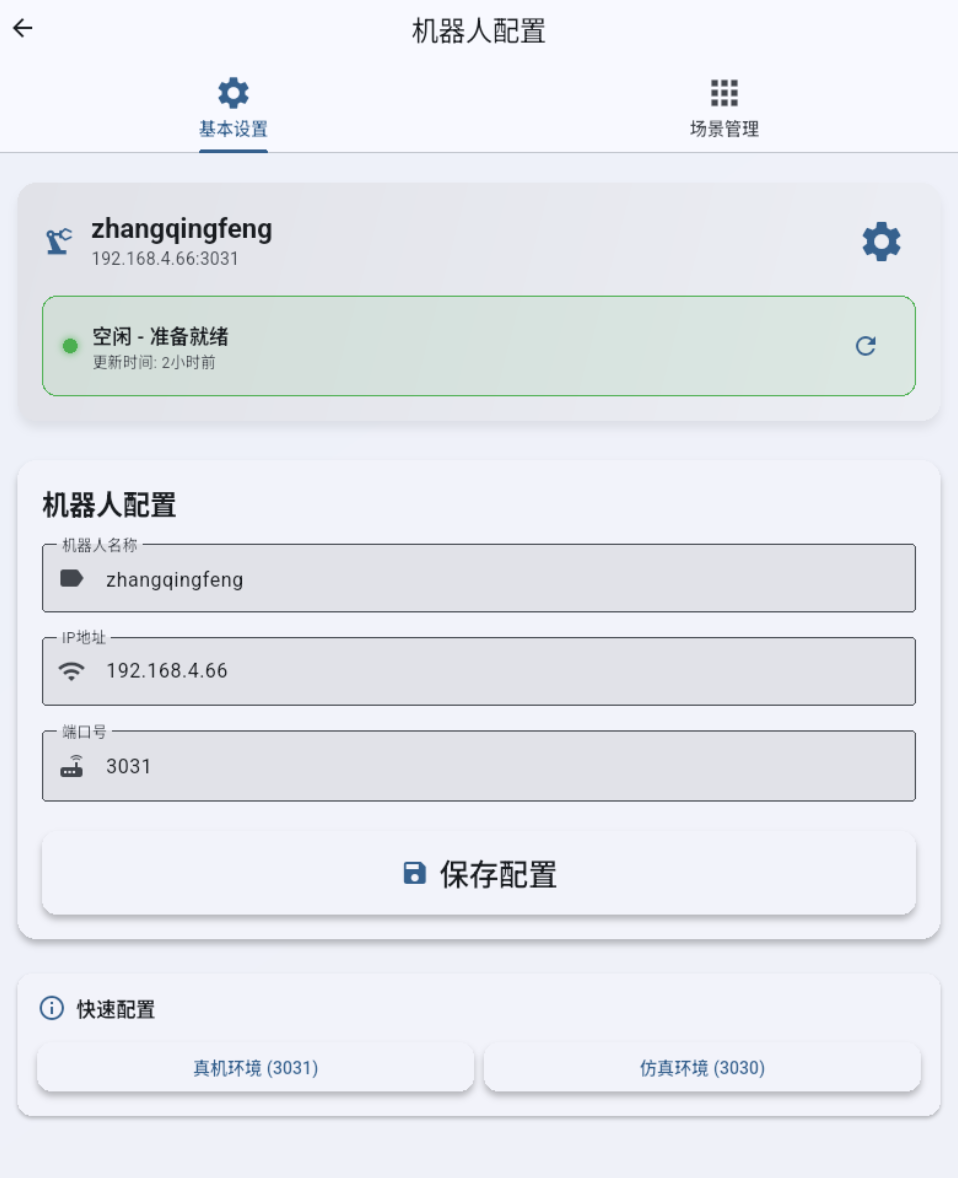
- Enter the robot configuration page, first configure the robot by filling in the robot name (any), robot IP address (important!! usually 192.168.x.x format) and port number, configure 3031 for real robot mode, directly controlling the robot body. Remember to click save configuration.
- After configuring the robot, go to scene management to configure the scenes you want to call. Click "Add Scene", fill in the scene name (fill in intuitively for easy understanding)
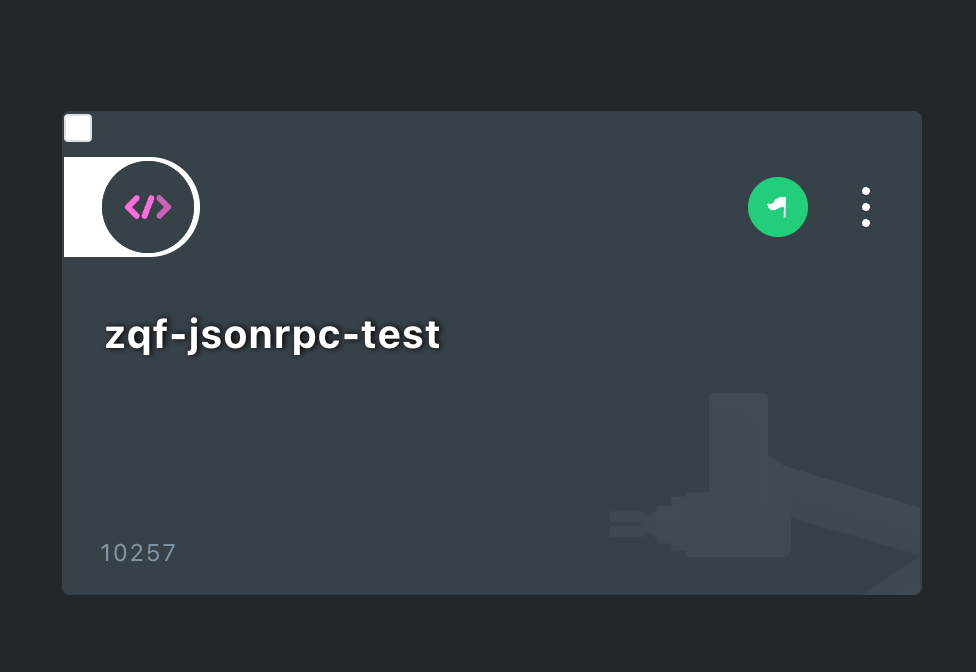
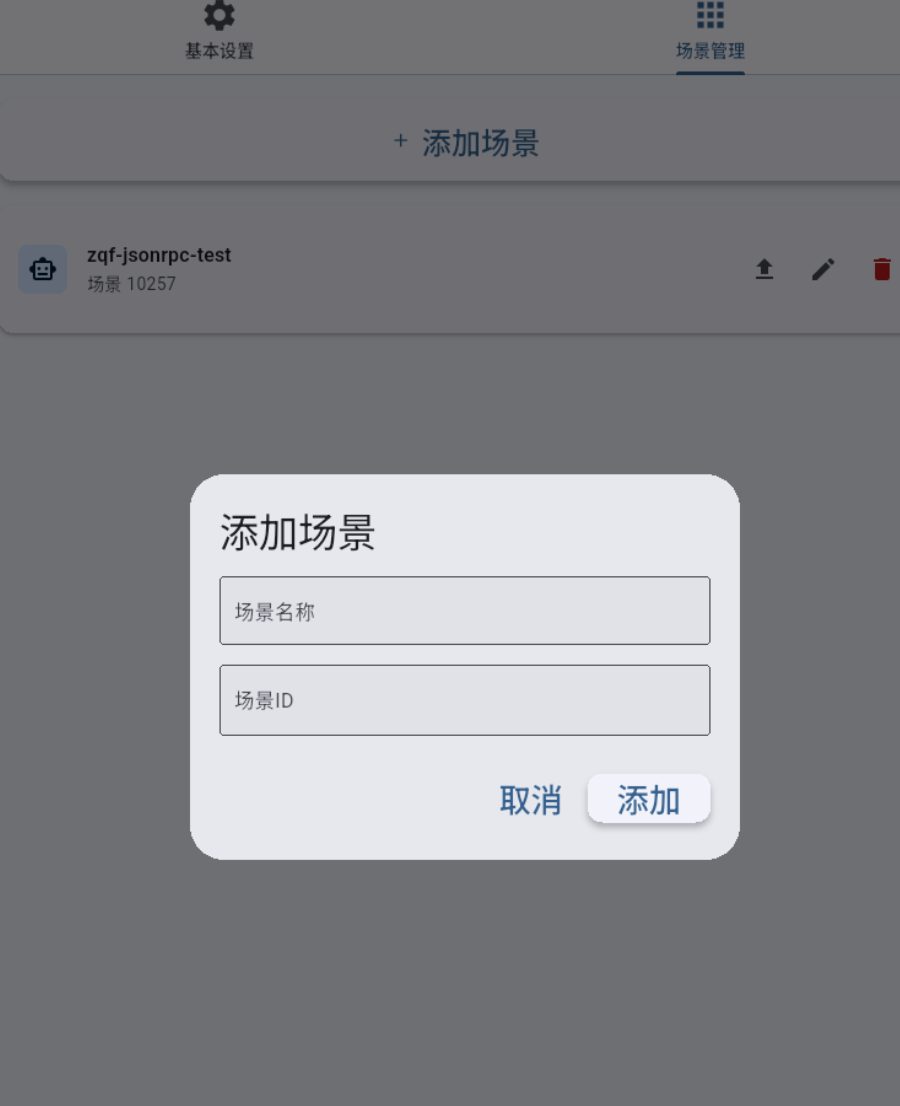 Then fill in the scene ID, which is very important - this is the ID shown in the bottom left corner of the LMaster scene
 You can add, edit, delete scenes anytime in the app, and also upload images. After configuration, you can see it on the homepage!
 - After configuration, return to the homepage
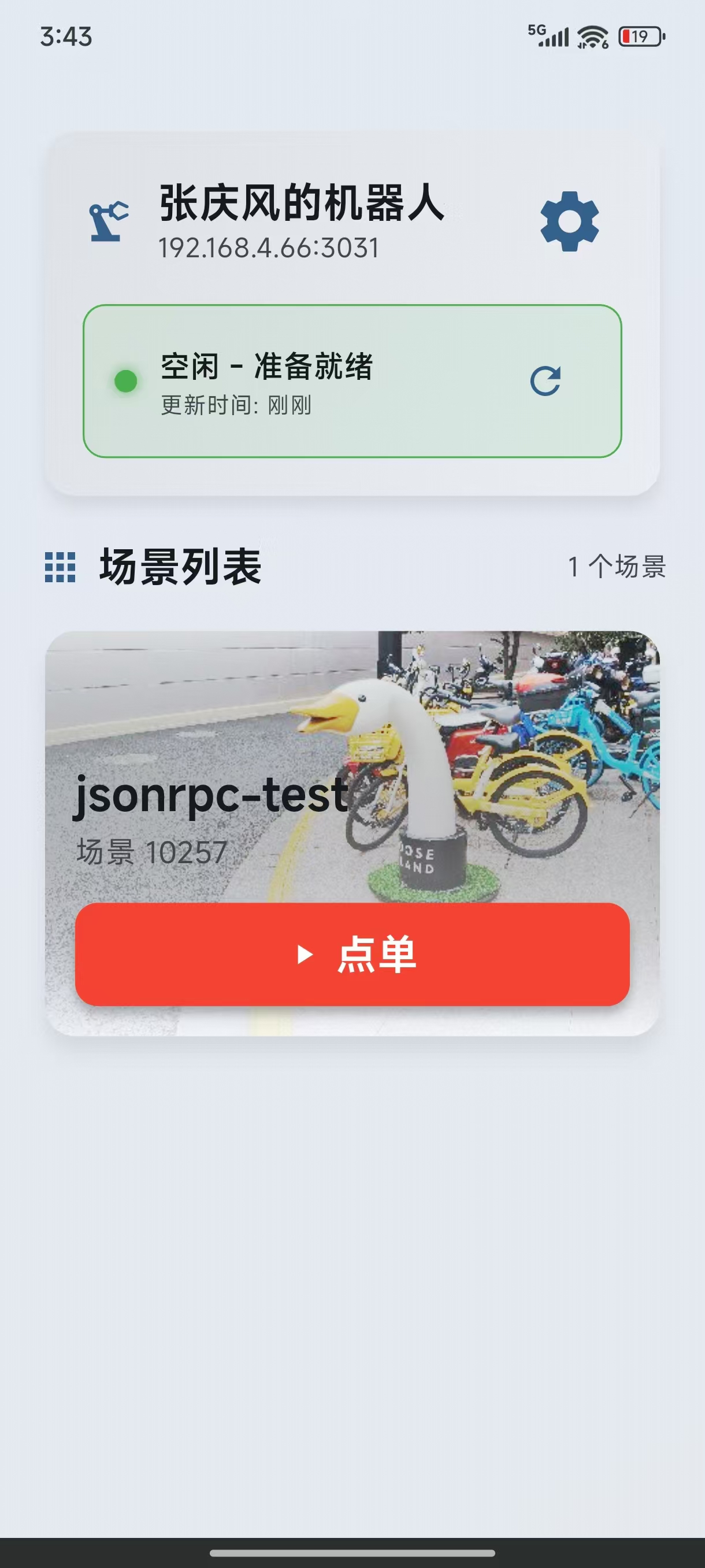 Very intuitive, just click "Order" to call the robot scene (scene 10257).
 - Configure anytime, use anytime. The above is a configuration and usage example. When there are multiple devices, just change the IP and scene ID for convenient calling.
- To enter the settings page in the future, just click the similar icon
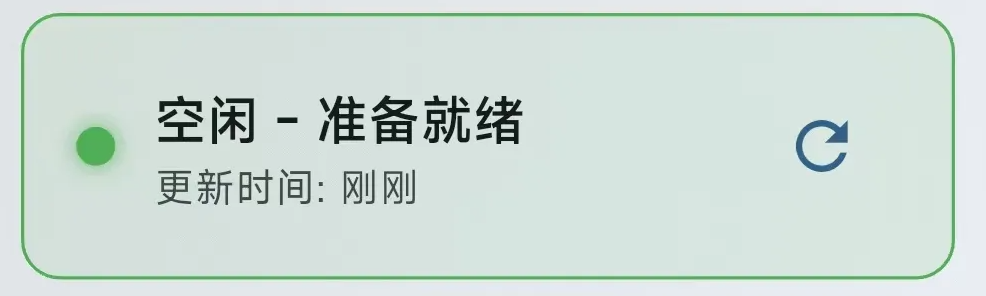
- This can refresh the currently connected robot status. It generally refreshes automatically, but if you need to manually check the robot status, click the circular button on the right to refresh. The robot typically has states like idle, moving, teaching, etc. You can conveniently check the robot's status
Operation Interface
- Homepage displays configured scene buttons
- Status bar displays robot status in real-time (idle/moving/teaching)
- Supports manual refresh of robot status (pull down to refresh in app)
For Android/iOS/Web Developers
If you are an Android/iOS/Web developer and want to use technologies like Kotlin/Swift/JS/Flutter to develop an application (interacting with the robot through the app), using jsonrpc to directly call robot scenes, you can refer to our provided flutter/web code to assist you in developing your own application.
GitHub reference: jsonrpc robot control example